Tech
USB-C cables explained: speed, charging power and what to buy
Why USB-C cables that look identical behave so differently, how to read speed and wattage labels, and which cable you need for charging, data and displays.
 Bitezine Editorial TeamRankings, reviews & guides 5 min read
 AI generated
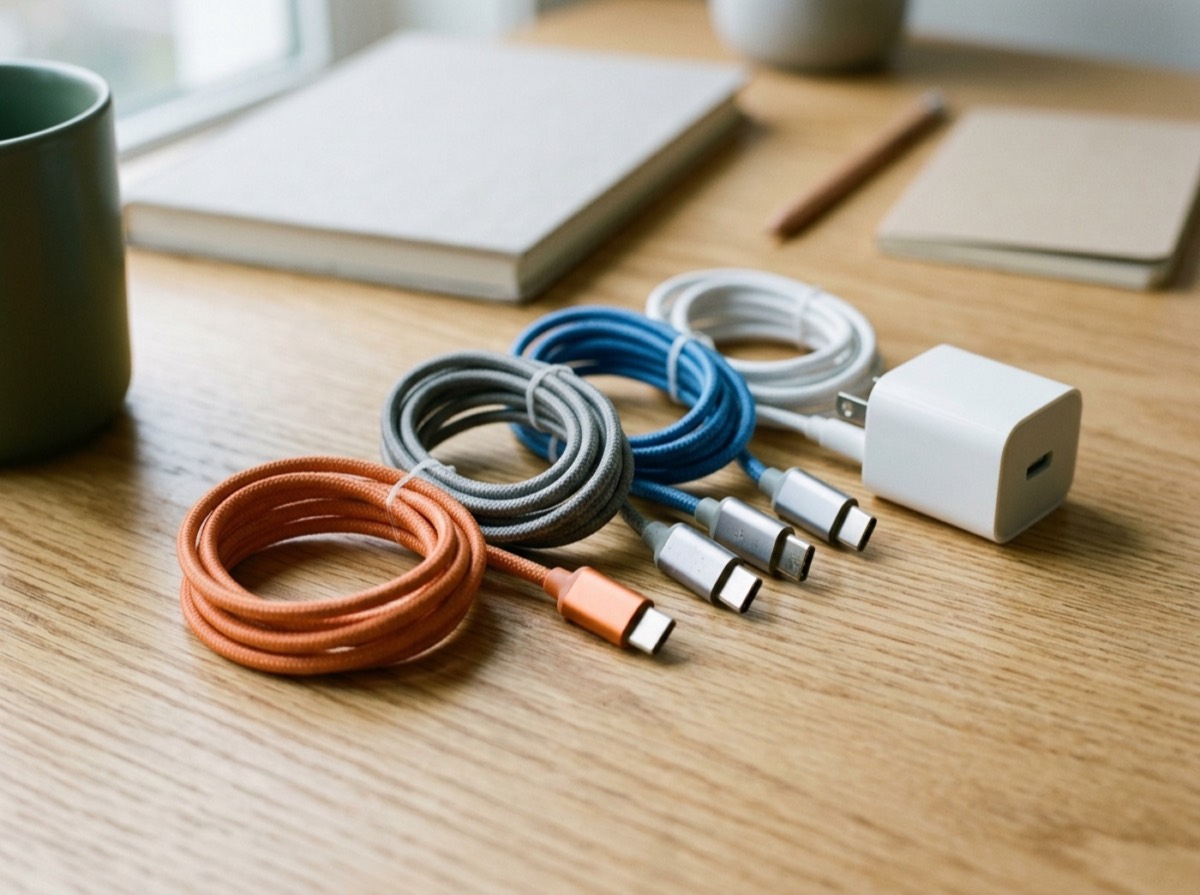
USB-C cables explained in one sentence: the connector is the same everywhere, but what flows through it is not. Two cables that look identical can differ hugely in data speed, charging power and whether they can carry a video signal to a monitor.
Since USB-C became the common charging port for phones and many other devices sold in the EU, most homes now have a pile of these cables. This guide explains the labels, the standards behind them and how to pick the right cable without overpaying.
Are all USB-C cables the same?
No. USB-C describes only the shape of the plug: a small, oval, reversible connector. Inside the cable, the wiring and chips determine what it can do. The USB specification distinguishes two broad families.
USB 2.0 Type-C cables contain only the basic wires for charging and slow data. Full-featured cables add extra high-speed wire pairs that support faster data transfer, video output and other alternate modes. Many cables that come in the box with phones and accessories are the simpler USB 2.0 type, which is fine for charging but slow for moving large files.
USB-C data speeds explained
The version names are famously confusing, so here is the practical ladder from slowest to fastest. Remember that both devices and the cable must support a speed for you to get it.
- USB 2.0: up to 480 Mbit/s, fine for charging, keyboards and small files
- USB 3.2 Gen 1 (often labelled USB 5Gbps): up to 5 Gbit/s
- USB 3.2 Gen 2 (USB 10Gbps): up to 10 Gbit/s, good for fast external SSDs
- USB 3.2 Gen 2x2 (USB 20Gbps): up to 20 Gbit/s, supported by relatively few devices
- USB4 (USB 40Gbps): up to 40 Gbit/s, with support for displays and docks
- USB4 Version 2.0 (USB 80Gbps): up to 80 Gbit/s for the most demanding setups
USB-C describes the shape of the plug, not what the cable can actually do.
Charging power: 60W, 100W and 240W cables
USB Power Delivery, or USB PD, is the standard that lets a charger and device agree on voltage and current. The cable sets an upper limit. A standard USB-C cable is rated for 3 amps at up to 20 volts, which means up to 60 watts. That covers phones, tablets, earbuds and many small laptops.
Cables rated for 5 amps can carry up to 100 watts at 20 volts. With the Extended Power Range introduced in USB PD 3.1, certified cables can handle 5 amps at up to 48 volts, which allows up to 240 watts for powerful laptops, monitors and other larger devices.
Using a higher-rated cable than you need is safe. The charger and device negotiate power, and they never push more than the weakest part of the chain allows.
What is an e-marker chip?
An e-marker is a small chip inside the cable's connector that tells connected devices what the cable can handle, such as its current rating and data speed. Cables that support 5 amps or the fastest data speeds must include one. Without an e-marker, a charger will limit itself to 3 amps to stay safe.
This is why a slow charging speed is sometimes caused by the cable rather than the charger. If your laptop charger is rated at 100 watts but your laptop shows slow charging, a 60-watt cable may be the bottleneck.
USB-C for monitors, video and Thunderbolt
Many laptops can send a video signal through USB-C using DisplayPort Alternate Mode, and USB4 and Thunderbolt connections carry video as part of their data stream. For this to work, the laptop port must support video, the monitor must accept it, and the cable must be full-featured. A basic USB 2.0 charging cable will not carry a picture.
Thunderbolt uses the same USB-C connector and is built on the same foundation as USB4. Recent Thunderbolt cables work as high-quality USB-C cables in most situations, which makes them a good all-round choice if you want one cable that does everything, though they cost more and are often short.
How to read USB-C cable labels
The USB Implementers Forum has introduced simpler logos for certified cables that show the data speed and wattage directly, for example a speed in Gbps and a power rating such as 60W or 240W. Check the packaging and product description for these values rather than relying on vague terms like fast or premium.
Cable length matters too. Very high data speeds are harder to maintain over long passive cables, so longer cables are often limited to lower speeds. For charging, length makes little practical difference.
- Look for a stated data speed in Gbps
- Look for a stated power rating in watts
- Check whether video output is supported if you need it
- Prefer certified cables from reputable makers
- Label your own cables with coloured tape or tags once you know what they do
Which USB-C cable should you buy?
You rarely need the most expensive option. Match the cable to its job.
- Phone, earbuds, watch charger: any good 60W cable
- Laptop charging above 60 watts: 100W or 240W cable
- External SSD: at least 10 Gbps, ideally short
- Monitor or docking station: USB4, Thunderbolt or a full-featured cable that supports video
- Travel: one 240W cable that also supports high data speeds covers most needs
Frequently asked questions
Why are some USB-C cables so slow at transferring files?
+
Many USB-C cables, especially those bundled for charging, only support USB 2.0 data at 480 Mbit/s. For fast transfers you need a cable rated for at least 5 or 10 Gbps, and both devices must support that speed too.
Can I use any USB-C cable to charge my laptop?
+
Any USB-C cable will charge it, but possibly slowly. Standard cables carry up to 60 watts. If your laptop charger delivers more, use a cable rated for 100 or 240 watts to get full charging speed.
Is it safe to use a 240W cable with my phone?
+
Yes. The phone and charger negotiate how much power to use, and the phone only draws what it needs. A higher-rated cable simply gives more headroom.
Is USB4 the same as Thunderbolt?
+
They are closely related and use the same connector, with USB4 based on Thunderbolt technology. Thunderbolt certification requires certain features and speeds that USB4 lists as optional, so Thunderbolt devices tend to support more capabilities consistently.
Why won't my monitor work with a USB-C cable?
+
The cable may be a USB 2.0 charging cable that lacks the wires for video, or the laptop port may not support video output. Use a full-featured, USB4 or Thunderbolt cable and check that the port supports DisplayPort.
Do I need a new charger for USB-C devices in the EU?
+
Often not. The EU common charger rules made USB-C the standard port for phones and many other devices, and allow them to be sold without a charger in the box. An existing USB PD charger will usually work.
USB-C cables look the same, but speed, wattage and video support vary widely. Check the stated Gbps and watt ratings, use full-featured cables for monitors and fast drives, and pick a 100W or 240W cable for powerful laptops. Label what you own, and the drawer full of cables finally becomes useful.
How we research: Guides are written from established sources and checked for accuracy. They are general information, not professional advice.
Written by
Bitezine Editorial Team
Rankings, reviews & guides
Our editors research every piece from makers’ documentation, independent tests and owner reports, and update it when products change.