Tech
How to back up your phone properly (and actually restore it)
A clear guide to backing up an iPhone or Android phone, what a backup really contains, and how to restore everything to a new or reset device.
 Bitezine Editorial TeamRankings, reviews & guides 6 min read
 AI generated
Knowing how to back up your phone is one of those skills you only miss when it is too late: the phone slips into a lake, gets stolen, or simply refuses to turn on. A good backup turns that moment from a disaster into an annoying afternoon.
The catch is that many people think they are backed up when they are not, or they have a backup they have never tried to restore. This guide covers both halves: saving your data properly on iPhone and Android, and getting it back onto a phone when you need it.
What a phone backup actually includes
A phone backup is not one single thing. Your data lives in several places, and each one is protected differently. Settings, app data, messages and your home screen layout usually go into the system backup. Photos, contacts, calendars and notes are often synced to a cloud account separately, which means they are already safe but not technically part of the backup file.
That distinction matters. If photo syncing is switched off and you rely on the system backup alone, some or all of your camera roll may be missing when you restore. Before trusting any backup, check which of these categories is covered and where.
- System backup: settings, app data, messages, call history, layout
- Cloud sync: photos, contacts, calendars, notes, reminders
- Stored only inside individual apps: some chat histories, game progress, authenticator codes
How to back up an iPhone with iCloud
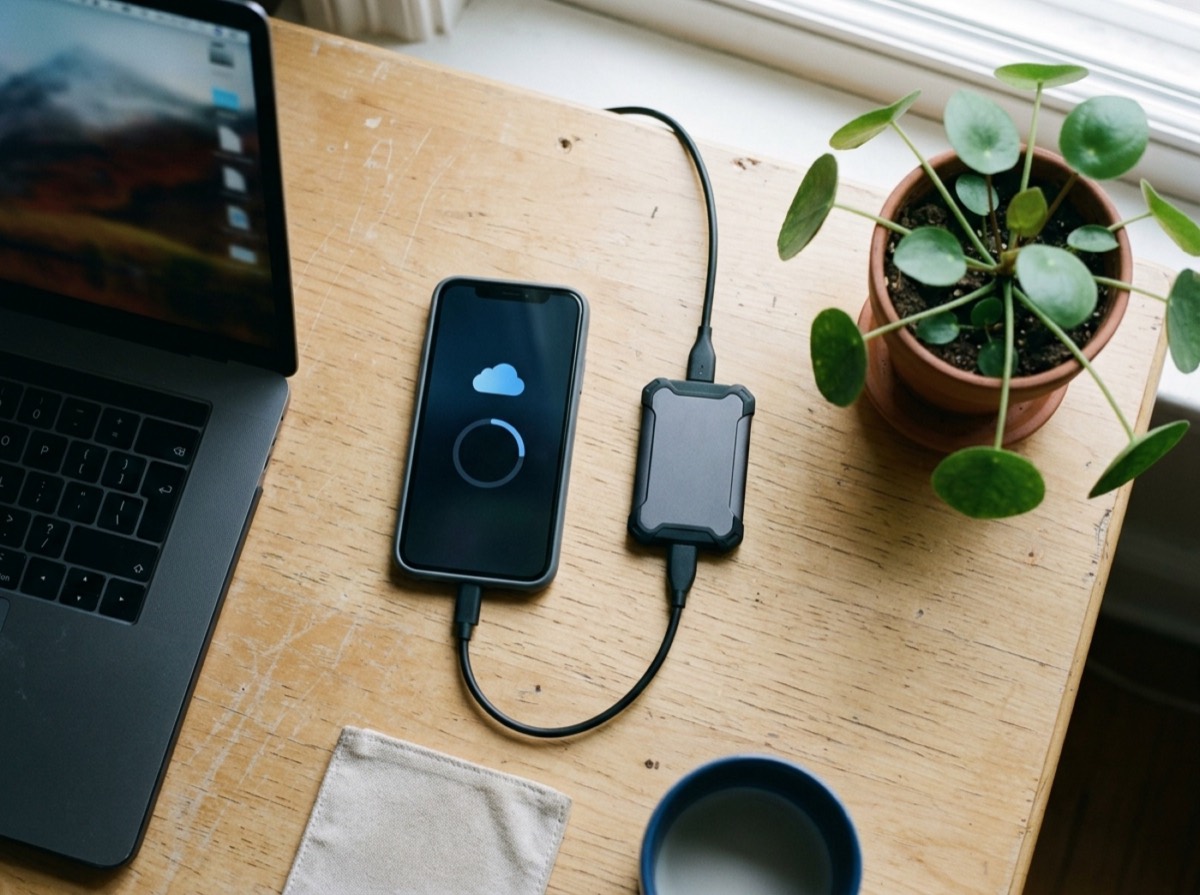
On an iPhone, open Settings, tap your name, then iCloud, then iCloud Backup, and turn it on. The phone then backs up automatically when it is locked, connected to Wi-Fi and charging, which for most people means overnight. You can also tap Back Up Now before a repair or an upgrade.
Apple gives every account a small amount of free iCloud storage, which fills up fast once photos are involved. If you see warnings that a backup could not complete, either free up space by excluding large apps from the backup or add more storage. A backup that silently stopped weeks ago is one of the most common reasons people lose data.
A backup you have never restored is a hope, not a plan.
How to back up an iPhone to a computer
A local backup is a useful second copy and does not depend on cloud storage. On a Mac, connect the phone with a cable, open Finder and select the iPhone in the sidebar. On Windows, use Apple's device management app for Windows. Choose to back up all data to the computer and start the backup.
Tick the option to encrypt the local backup and store the password somewhere safe. An encrypted backup also saves sensitive items such as saved passwords, health data and Wi-Fi settings, which an unencrypted local backup leaves out. Without that password, the backup cannot be restored, so treat it like a key.
How to back up an Android phone
Most Android phones back up to your Google account. The exact path varies by manufacturer, but it is usually under Settings, then Google or System, then Backup. Turn on backup by Google One and tap Back up now. This covers app data, call history, contacts, device settings and text messages on most devices.
Photos and videos are handled by the photo backup setting in Google's photo service, so confirm that is switched on as well. Some manufacturers also offer their own cloud backup and a cable-based transfer tool for their phones. Using the Google backup plus one local copy on a computer gives you good coverage.
- Check that backup is on and shows a recent date
- Confirm photo and video backup is enabled separately
- Copy important files such as downloads and documents to a computer by cable
The easily forgotten data that backups miss
The standard system backup does not catch everything. Some messaging apps keep chat history in their own backup setting, which must be switched on inside the app. Authenticator codes for two-factor authentication may not transfer to a new phone unless the app offers its own backup or transfer option, and losing them can lock you out of accounts.
Also check music or files you added manually, voice recordings stored inside apps, and any offline content from services that let you download media. When in doubt, open the app's settings and look for a backup, export or sync option.
How to restore your phone from a backup
On both iPhone and Android, restoring happens during initial setup, not from the settings menu of a phone that is already in use. If you want to restore to a phone you have been using, you will usually need to erase it first so the setup assistant appears again.
On an iPhone, follow the setup screens until you reach the option to transfer apps and data, then choose iCloud, a Mac or PC, or direct transfer from another iPhone. On Android, sign in with the same Google account during setup and pick the backup you want from the list. Keep the phone on Wi-Fi and charging afterwards, because apps and photos continue to download in the background for some time.
Test your backup before you need it
A backup you have never restored is a hope, not a plan. The easiest test is to look at the backup details: confirm the date is recent, the size looks reasonable and the apps you care about are included. Log into your cloud photo library from a browser and make sure recent pictures are there.
For extra safety, follow the 3-2-1 idea used by IT professionals: three copies of important data, on two different kinds of storage, with one copy kept away from home. For a phone, that can be the device itself, a cloud backup and an occasional encrypted copy on a computer or external drive.
Frequently asked questions
How often should I back up my phone?
+
Automatic daily backups are the best option, and both iPhone and Android can do this overnight while charging on Wi-Fi. Add a manual backup before software updates, repairs or trading in the phone. A local computer backup every month or two is a sensible extra layer.
Does iCloud backup include my photos?
+
Only if iCloud Photos is turned off. When iCloud Photos is on, your pictures sync separately and are not duplicated in the backup. Either way, check that one of the two is active so your photos are protected.
Can I restore a backup without resetting my phone?
+
Generally no. Full restores run during the setup process, so a phone already in use must be erased first. Individual items such as contacts or photos can often be brought back through the cloud account without a reset.
Can I back up an iPhone and restore it to an Android phone?
+
Not directly, because the backup formats are different. Switching platforms uses a dedicated transfer process that moves contacts, photos, messages and some other data during setup. App data usually does not carry over between platforms.
What happens if my backup fails because storage is full?
+
The phone keeps working, but no new backup is made, so your most recent data is unprotected. Remove large apps from the backup list, delete old device backups you no longer need, or add more cloud storage.
Is a cloud backup safe?
+
Cloud backups from the major platforms are encrypted and protected by your account login. The biggest risk is a weak account password, so use a strong unique password and turn on two-factor authentication for the account that holds your backups.
Backing up your phone properly takes about ten minutes to set up and almost no effort after that. Turn on automatic backup, confirm photos are covered, check the handful of apps that keep their own data, and look at the backup date now and then. When the bad day comes, you will set up the replacement phone, sign in, and carry on.
How we research: Guides are written from established sources and checked for accuracy. They are general information, not professional advice.
Written by
Bitezine Editorial Team
Rankings, reviews & guides
Our editors research every piece from makers’ documentation, independent tests and owner reports, and update it when products change.